
Getting started with design patent search
A step-by-step guide for IP professionals and industrial designers
Design patent clearance, freedom-to-operate analysis, and competitive design monitoring all begin with the same challenge: finding visually similar designs across a global corpus of filings. Traditional keyword and classification searches were built for utility patents — they struggle with the fundamentally visual nature of industrial design. FluidityIQ's Design Patent Search is purpose-built for this problem, combining a corpus of more than 33 million vectorized design images with natural language and image-based search to surface relevant results faster and with greater precision than any classification-driven approach. This guide walks you through the core functionality of the tool from search creation to results review.
Starting a design patent search
Design patent searches in FluidityIQ are created and managed within your Private Innovation Library (PIL). Open an existing PIL or create a new one, then click the blue Active Searches link (indicated by a plus sign) to get started. You will be presented with two options: Utility Patent Search and Design Patent Search. Select Design Patent Search to open the search creation screen.
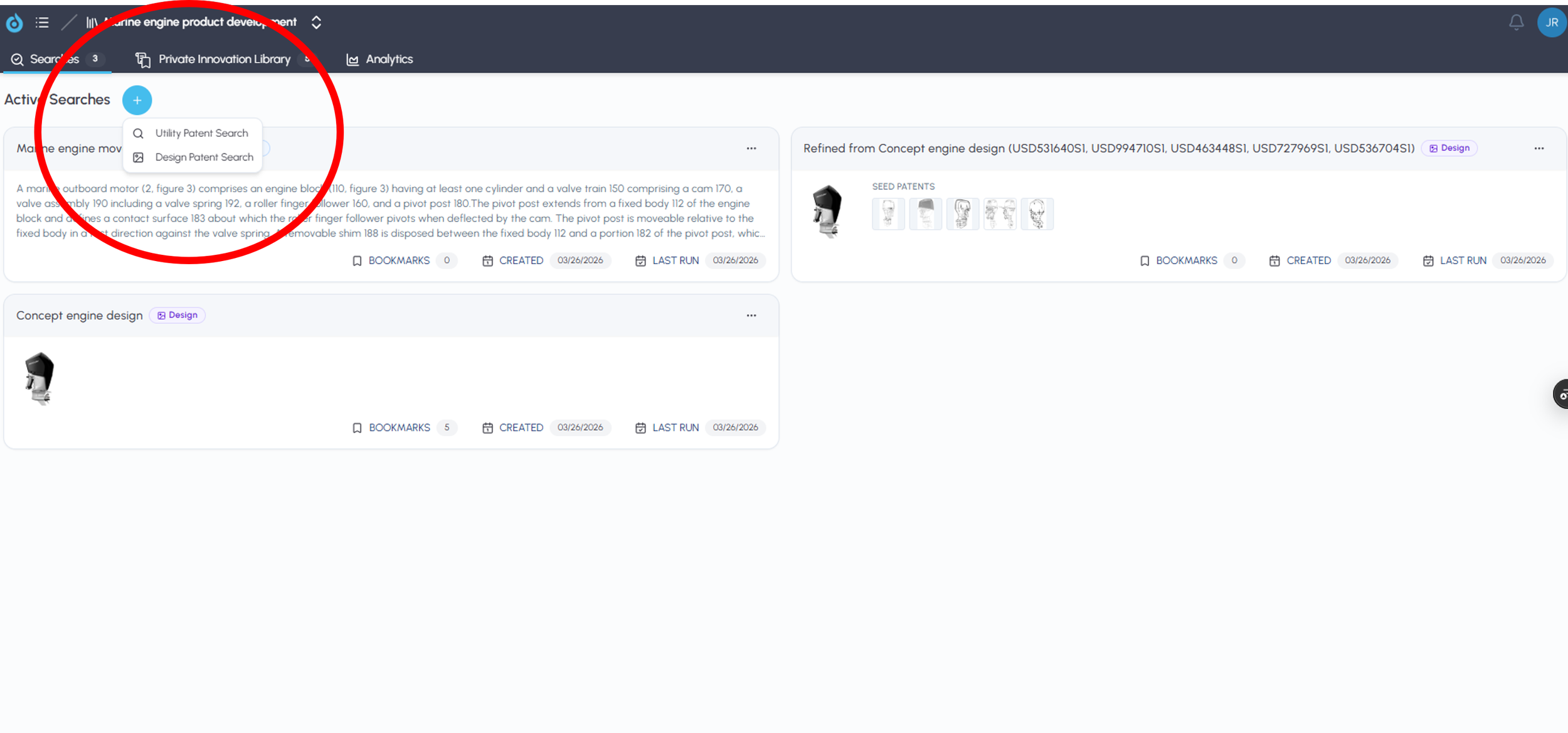
Select either Utility or Design search
Defining your search criteria
The search creation screen gives you several ways to scope your search before running it. Start by giving the search a descriptive name — this will appear in your PIL alongside any other searches you have created on this matter, so a clear name helps keep related work organized.
Next, select your target jurisdiction. FluidityIQ's design corpus spans major global IP offices, with particular depth in China (CNIPA), which alone contributes more than 27 million vectorized images — by far the largest and most complete Chinese design patent dataset available in any commercial tool.
You can apply any combination of additional filters to focus your results, including Locarno classification, priority date, filing date, and publication date. These filters can be applied at the outset to narrow the initial corpus, or added later from the results page to progressively refine your analysis.
Describing your design
FluidityIQ supports two input methods for the core search query, and they can be used together.
Natural language description. Type a plain-language description of the design you are searching — for example, "a handheld power drill with a pistol grip and forward-mounted LED light" or "a two-piece folding outdoor chair with a mesh seat and tubular aluminum frame." The platform uses semantic vector search to find visually and conceptually similar designs across the corpus, without requiring you to identify the right Locarno code in advance.
Image upload. Drag and drop an image of the design directly onto the search screen. The platform will vectorize the image and return results based on visual similarity. This is particularly useful during the early stages of a new product development cycle, when a design rendering or photograph is available but a formal description has not yet been written.
Each search uses one input method — text or image — so it is worth thinking about which approach best fits your starting point. If you have a clear product description but no image, natural language is the faster path. If you have a design rendering or photograph, image upload will anchor the search visually. You can always run a follow-on search using the other method and compare results within the same PIL matter.
Once you have defined your criteria, click Create Search in the lower right corner to run the search.
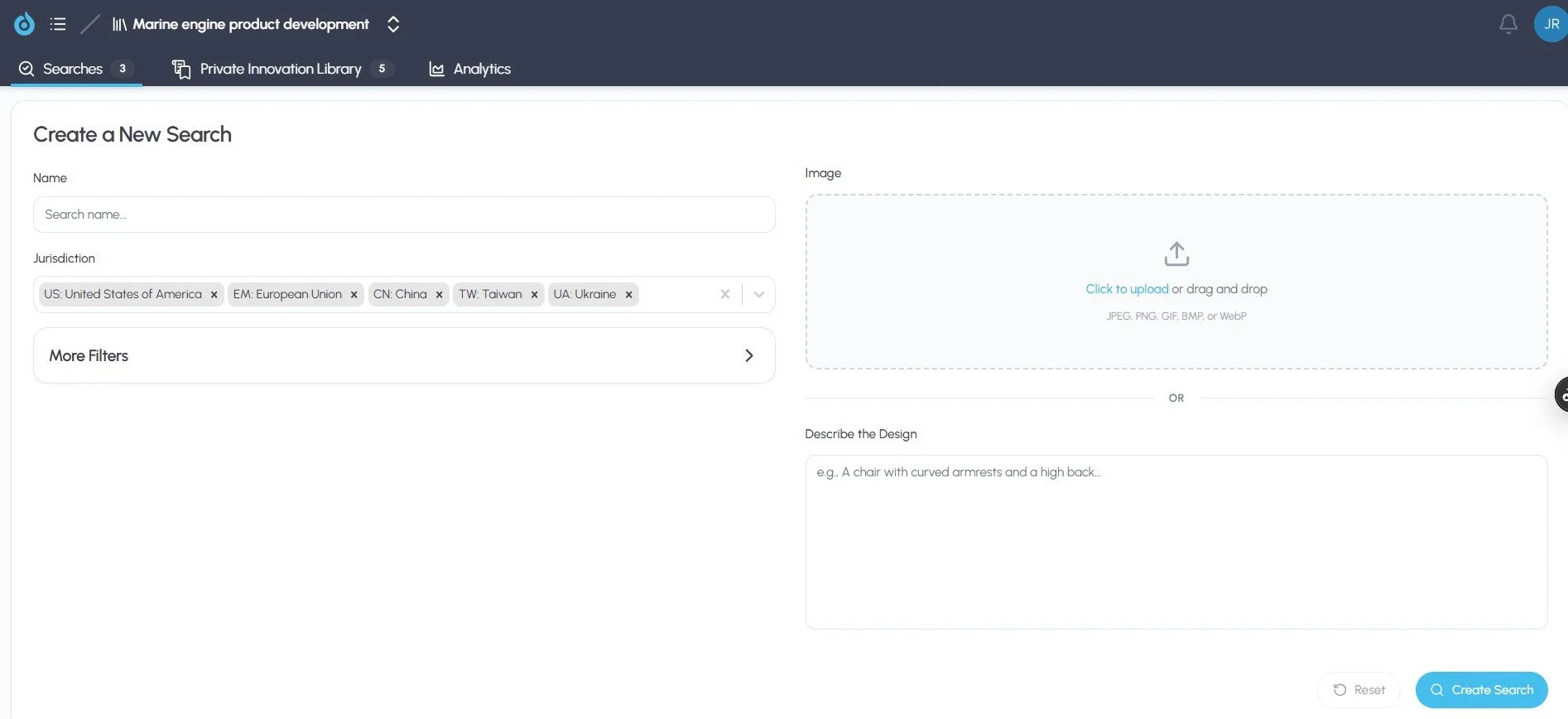
Search by dragging and dropping an image, by plain text or using filters
Reviewing your results
Search results are displayed on the Results page, which is organized into two panels. The left panel shows your search criteria and any active filters — this panel can be collapsed to give more screen space to your results. The right panel displays results as a tile grid, with one tile per design image.
Each tile shows the design image itself along with basic filing information. To access the full patent details for any result, hover over the tile to reveal the information icon (a lowercase i in the upper left corner) and click it. This opens the patent record, including all bibliographic data, filing metadata, and Locarno classification. If a patent contains multiple design images, you can page through them using the navigation arrows that appear on the left and right sides of each image.
Adjusting and refining results
The Results page includes several tools for exploring and focusing your results after the initial search is run.
Grid density. Use the density control to increase or decrease the number of tiles displayed per row. A denser grid lets you scan more results at a glance; a larger tile view makes it easier to examine fine design details.
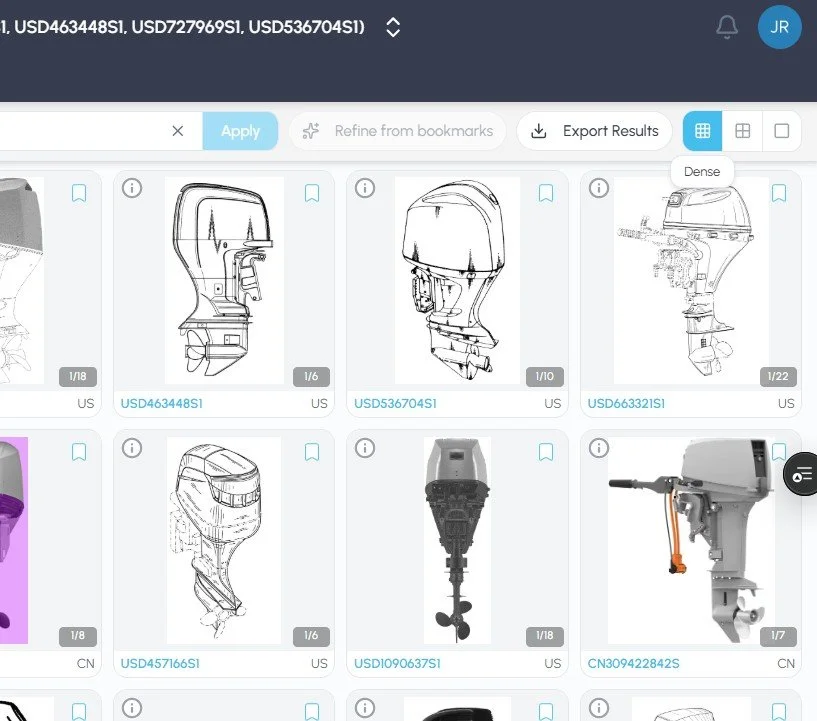
Change the density of the grid to view more or fewer results on a page
Filter by search criteria. The same filters available when creating a search — Locarno classification, priority date, filing date, and publication date — can also be applied directly from the results page. This means you can start with a broad search and progressively narrow the results by jurisdiction, classification, or date range without having to rebuild the search from scratch.
Text-based reordering. The text box at the top of the results panel allows you to type in descriptive language to reorder results in real time, surfacing the images that best match the features you care about most. This is particularly useful when a search returns a broad set of results and you want to quickly elevate the most relevant subset without running a new search.
Refine Search. The Refine Search function allows you to bookmark specific images from your results — designs that are particularly close matches or that represent a cluster of interest — and then run a new search that emphasizes the visual and conceptual features of those bookmarked images. This iterative approach is well-suited to clearance work, where the first pass establishes a broad corpus and subsequent passes progressively isolate the highest-risk references.
Export. Results can be exported to Excel for documentation, reporting, or further analysis outside the platform.
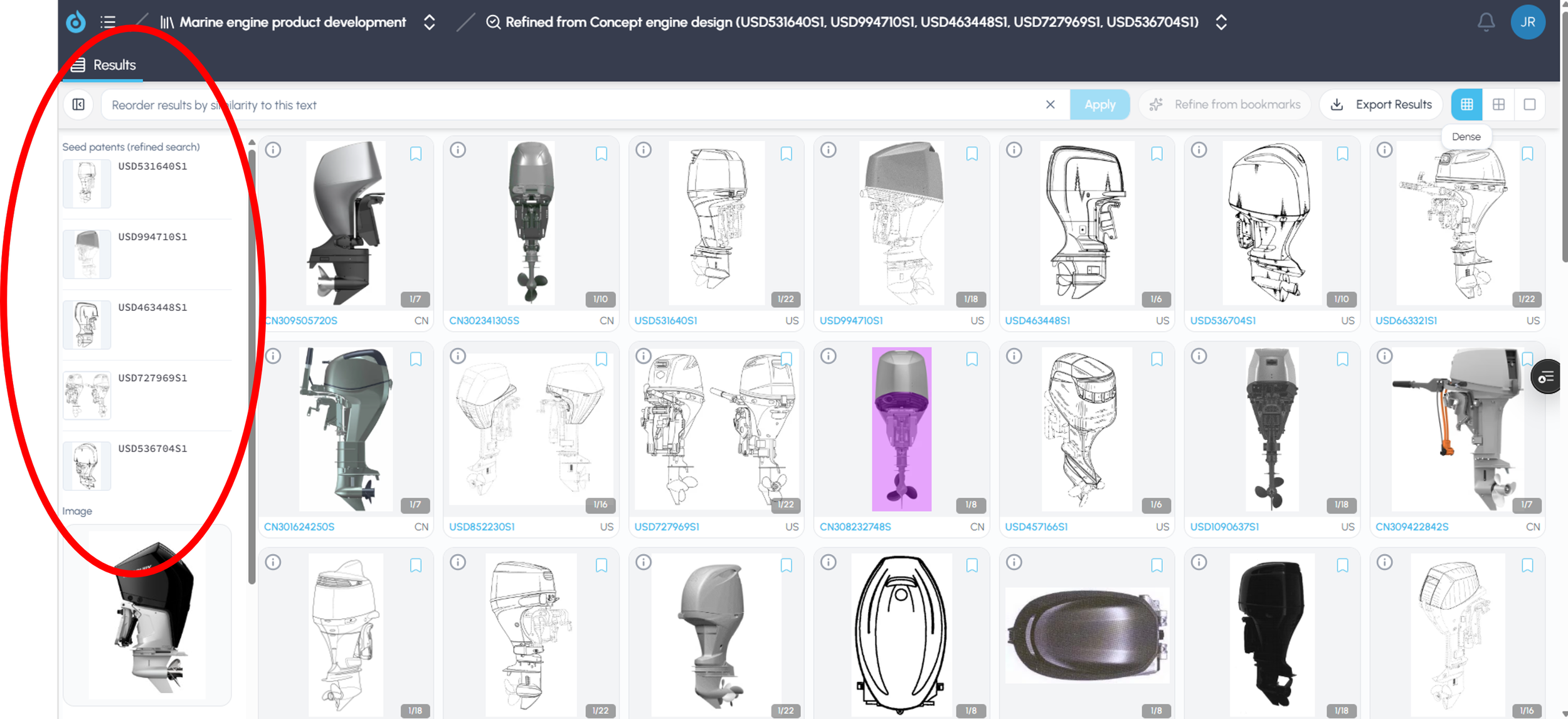
Bookmark images to refine a search using the characteristics of selected images
Conclusion
FluidityIQ's Design Patent Search gives IP professionals and product teams a research environment built around the way design patents actually work — visually, globally, and often without reliable keyword handles. By combining a 33-million-image corpus with natural language and image-based search, iterative refinement tools, and deep integration with your Private Innovation Library, the platform brings the same analytical rigor to design clearance and monitoring that has long been available for utility patent work. Subsequent guides in this Learning Center cover specific workflows including competitive design landscape analysis and design freedom-to-operate assessments.